Sisu applications

By selecting a degree programme you are able to see the general content as well as the possible degree programme-specific content. You do not have to select a degree programme to see the Open University's instructions.

You can make different types of applications in Sisu. You can apply for the substitution of a course of study with previously completed studies, a deviation from the degree structure, the module completion and a request for graduation.

On this page you will find instructions on how to apply for different types of applications. If you are unsure which application you should submit, ask your doctoral programme's senior advisor for help before you apply.

Applying for credit transfer

Application for content that deviates from the pre-determined structure (free edit mode)

If necessary, you can deviate from your degree structure defined in Sisu using the free edit mode. Use the free edit mode, for example, if you wish to substitute a study module in your study plan with a module that has been completed with old degree requirements. Approval must always be applied for changes made in the free edit mode.

Substitution application

Submit a substitution application (credit transfer) if you want to substitute a compulsory or an alternative course with prior studies that you have completed in another institution of higher education in Finland or abroad. You can submit a substitution application on the course brochure. 

Note! There are separate instructions for registering conference presentations her: Registration of doctoral studies.

Note! If you have completed an equivalent credit at the University of Helsinki, you can mark the equivalence yourself on the course brochure. If this is not possible, you must use the free edit mode instead of the substitution application. 

Inclusion application

Inclusion in doctoral studies can only be applied for in exceptional cases. Please contact your doctoral programme's senior advisor before submitting your application.

Submit an inclusion application (credit transfer) if you want to include prior studies that you have completed in another university in Finland or abroad as a part of your degree’s optional or alternative studies. Apply for inclusion also for studies completed at the University of Helsinki if they have already been attached to another degree.

Applications in the free edit mode

When should the free edit mode be used?

In these cases, you do not need the free edit mode:

  • For example, you have a course completed in accordance with old degree requirements, which has already been entered in Sisu as an equivalent for some other course. In this case, you can mark the equivalence from the course brochure yourself without the free edit mode. Therefore, always check first whether an equivalence has been marked between the course you have completed and the one in your plan.
  • If you can see the text "approval required” next to a study module or some other section in your study plan. In this case, submit a request for content approval, for which you do not need the free edit mode.
  • If you have completed your studies elsewhere than at the University of Helsinki and your credits have not yet been transferred. In this case, first apply for credit transfer with a substitution or inclusion application.
  • If you want to add studies that are already attached to another degree at the University of Helsinki to your study plan, also submit a credit transfer application.

Make your application in the free edit mode when one or more of these statements apply:

  • A course has been recorded as completed but you cannot place it in the desired study module or section of your study plan.
  • You have completed a study module but cannot place it as an optional study module in Sisu.
  • You want to replace a course with another course that you plan to complete or have completed at the University of Helsinki or have transferred to the University of Helsinki. In addition, the course has not been marked in Sisu as an equivalent to another course.
  • You want to replace a study module with another module that you have completed at the University of Helsinki or have transferred to the University of Helsinki.
  • You have the completion of the same course multiple times in your plan.
  • You have a a custom course credit that has been added and approved for a certain part of your study plan, and because of which the plan is an non-compliant mode.

Please note the following

  • Always make sure you are editing your primary study plan before submitting an application in the free edit mode. You can submit applications only in the plan that is based on your study right.
  • Make sure you are editing the correct level in the degree structure, i.e. that you are opening the selection assistant under the right heading in your plan. You will find that you are editing the wrong place when you are unable to apply for approval.
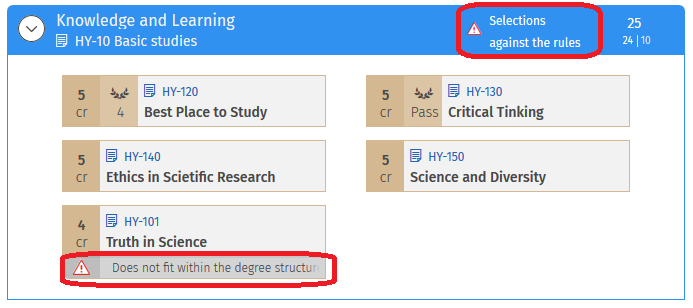
  • When you edit your plan in the free edit mode, your study plan will temporarily go to non-compliant mode. On the right side of the study plan part, the text “selections against the rules” appears, and the warning bar “The structure of the study plan is against the rules. Please correct your selections.” will appear at the top of the study plan. This is Sisu's normal operation. These notifications will disappear once your proposed changes have been approved by the Student Services.

Adding and removing a course in the free edit mode

Note! You cannot add a course in a module that is a compulsory course in another study module that is a part of your study plan. 
If you are about to add or delete a course from a module, this is what you should do:

  1. Go to the Structure of studies page.
  2. Make sure that you are editing your primary study plan.
    Screenshot of the user interface of Sisu.
  3. Open the selection assistant by clicking the name of the study module or the name of the section of the plan in your study plan that you wish to add a course to or delete a course from. If there are subheadings in the module, click the subheading under which you wish to make the change in.
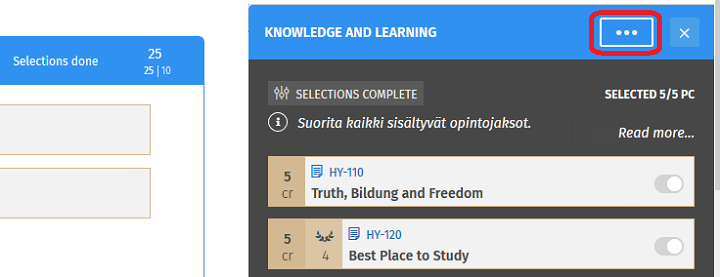
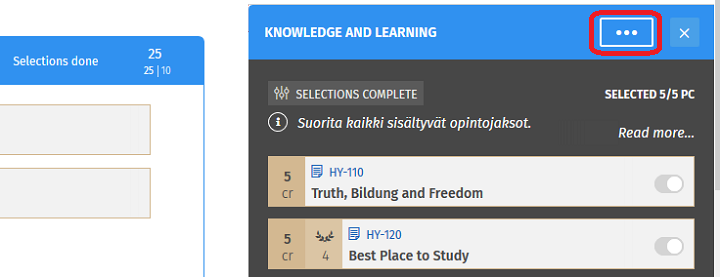
  4. Click the button with three dots in the title bar of the selection assistant. Select Free edit mode from the drop-down menu.
    Screenshot of the user interface of Sisu.
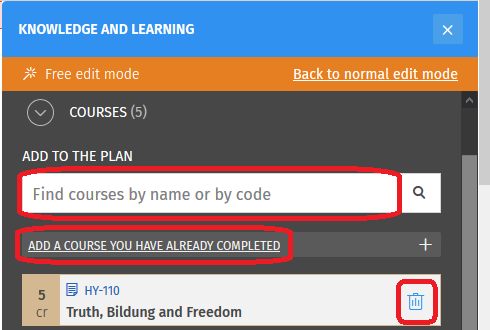
  5. Make the changes of your choice in the selection assistant.
    1. If you want to delete a course, click the recycling bin icon in the course’s view.
    2. If you want to add a course you have already completed, click the link ‘Add a course you have already completed’. Select the course of your choice from the list.
    3. If you want to add a course, type the name or identifier of the course to the ‘Add to the plan’ search field. Then select the right course from the drop-down menu.
      Screenshot of the user interface of Sisu.
  6. A notification ‘selections against the rules’ will appear in your study plan and it will say ‘Not a part of your degree structure’ in the course that you added. These notifications will go away after you have applied for and gotten approval for the changes you made. You should only apply for approval when you know that there will be no other changes to the same section of your plan.
    Screenshot of the user interface of Sisu.
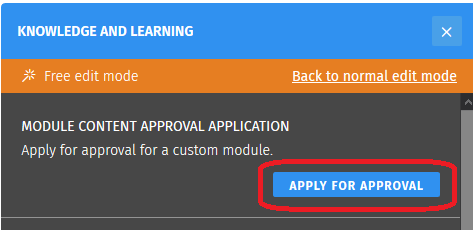
  7. Scroll up in the selection assistant and click the Apply for approval button. Write a short argument for the application in the pop-up window. Write in the provided field what changes you have made in the study plan. Which courses have you removed from the study plan and which are the new ones? If the changes can be found in an equivalence table, please write “according to the equivalence table” in the text field. If you have already agreed on the changes with a teacher, please state the name of the teacher. If you are about to graduate, please state it in your application's justifications. This way, your application will be processed as rapidly as possible. Save the application.
    Screenshot of the user interface of Sisu.
  8. Leave the free edit mode by clicking the link ‘Back to normal edit mode’ in the orange bar in the selection assistant.
  9. The course or the section of your plan that you changed is in ‘Approval requested’ mode until your application is approved.
  10. If you are about to graduate, also send an e-mail to your own faculty's student services. Write "Graduating student, application submitted in Sisu" as the header of the e-mail. State in the e-mail that the application is for the approval of content deviating from the degree structure.
  11. After your application has been processed, you will receive a message about its approval or rejection on the frontpage of Sisu. You can also view your application on the My profile page by going to the Applications and decisions tab.

Substituting one study module with another in the free edit mode

Substituting one study module with another is necessary if, for example, you have completed a study module (e.g. basic studies) in accordance with old degree requirements. A compulsory study module can be substituted with another in your study plan only in accordance with these instructions. What you should do:

  1. Check the name and code of the module you have completed from your credits (see My profile instructions)
  2. Go to the Structure of studies page.
  3. Make sure that you are editing your primary study plan.
    Screenshot of the user interface of Sisu.
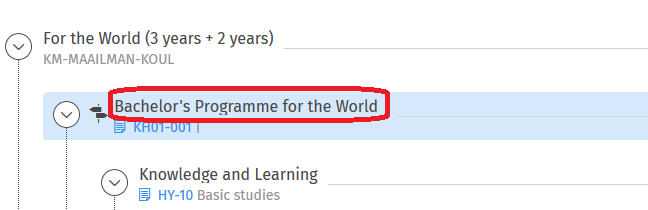
  4. Open the selection assistant by clicking the name of the degree programme in your study plan.
    Screenshot of the user interface of Sisu.
  5. Click the button with three dots in the title bar of the selection assistant. Select Free edit mode from the drop-down menu.
    Screenshot of the user interface of Sisu.
  6. Scroll down the selection assistant until you see the subheading ‘modules’. Make the changes of your choice:
    1. Add a module that you have not completed yet by typing its name or code in the search field.
    2. Add a module that you have completed by clicking the text ‘Add a study module you have already completed’.
    3. Delete a module by clicking the recycling bin icon in the module’s view.
      Screenshot of the user interface of Sisu.
  7. Scroll up in the selection assistant as high as possible and click the Apply for approval button. Write a short argument for the application in the pop-up window.  Write in the provided field what changes you have made to the your degree in the study plan. Which study modules have you removed from the study plan and which are the new ones? If the changes can be found in an equivalence table, please write “according to the equivalence table” in the text field. If you have already agreed on the changes with a teacher, please state the name of the teacher. If you are about to graduate, please state it in your application's justifications. This way, your application will be processed as rapidly as possible. Save the application.
    Screenshot of the user interface of Sisu.
  8. Leave the free edit mode by clicking the link ‘Back to normal edit mode’ in the orange bar in the selection assistant.
  9. Your study plan is in "against the rules" mode until your application has been approved. Please note that the module you added will not be placed in the deleted module’s place in your study plan but instead at the very bottom! Its status is ‘Does not fit within the degree structure’ until your application has been approved.
  10. If you are about to graduate, also send an e-mail to your own faculty's student services. Write "Graduating student, application submitted in Sisu" as the header of the e-mail. State in the e-mail that the application is for the approval of content deviating from the degree structure.
  11. After your application has been processed, you will receive a message about its approval or rejection on the frontpage of Sisu. You can also view your application on the My profile page by going to the Applications and decisions tab.

Information about the approval or rejection of your application

Your application can be approved or rejected. You can find the decision as follows:

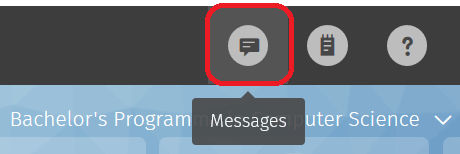
  • You will receive a message about the decision on the frontpage of Sisu. You can also find the message when you click the Messages icon, which is shaped like a speech bubble, in Sisu’s black title bar.

    Screenshot of the user interface of Sisu.
  • The decision can be seen in the structure of your study plan. If your application is approved, a text “selections approved” is shown in your study plan under the section of the plan in question. If your application is rejected, or the decision has not been made yet, it will say either “against the rules” or “selections in progress” in this section. 
  • The decision can be found from the guidance information of your study plan. You will see the decision when you open the Structure of studies page and click the Guidance button at the upper corner of your study plan.

    Screenshot of the user interface of Sisu.

     
  • You can see all your applications and related decisions on the Applications and decisions tab of the My profile page. Click on the row of an application or decision to view its details.

    Screen capture of applications and decisions on the My profile page in Sisu.

     
  • If the study module you applied for included study drafts, your application was accepted conditionally. Next to the study module in your study plan the text “Selections approved conditionally” is shown. Complete the studies mentioned in the decision according to the given provisions and once completed, register the study module according to the instructions. If you have not requested for the study module to be registered before you submit your diploma application, the study module will be registered at the time of graduation. At that time, it will be checked that the conditions set for the study module have been met.

Cancelling an application and relinquishing approval

If you have to make new changes to the section of your study plan that you have already requested to add content that deviates from the degree structure, this is what you should do:

  • If your previous application for approval has not been approved yet, cancel the application
  • If your previous application for approval has already been approved, relinquish the approval

Cancelling the application

An application that is in the free edit mode can be cancelled if it has not been approved yet. 

  1. Open the selection assistant by clicking the heading of the section of the study plan where you have made the application.
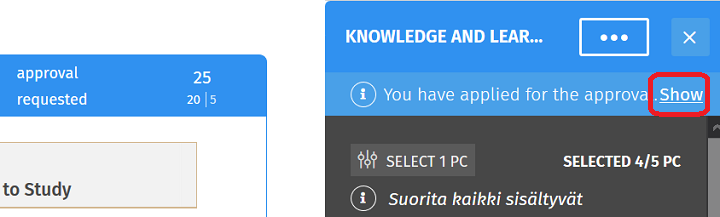
  2. Click the link ‘Show’ next to the text ‘You have applied for the approval’.
  3. Click the Cancel application button at the bottom of the pop-up window.

Relinquishing approval

You can relinquish the approval of your application if necessary.

  1. Open the selection assistant by clicking the heading of the section of the study plan where you have made the application.
  2. Click the link ‘Show’ next to the text ‘You have applied for the approval’.

    Screenshot of the user interface of Sisu.
  3. Click the Relinquish approval button at the bottom of the pop-up window. Confirm the relinquishment by clicking the Yes button.

What should I do if my application is rejected?

  1. Click the section of the study plan where you had made the application.
  2. Go to the Free edit mode.
  3. Restore the selections to as they were before you made changes. If necessary, submit a new application according to the Student Services' instructions.

Transferring an approved application to a new study plan

Principally, it is not recommended to create a new primary study plan (see When should I create a new primary plan?). However, if it is necessary for you to create a new study plan, you can find information about transferring requested changes here:

  • If you copy your study plan as a new plan, a change approved in the free edit mode will transfer to the copied plan as well.
  • If you create a completely new study plan for the same curriculum period as the original plan, a change approved in the free edit mode will not automatically transfer to the new plan. However, the text “Deviates from the applied content” will be shown in the new study plan. The text is shown in the section where you have applied for content that deviates from the pre-determined structure in your previous study plan. If you make the same deviant selections that have been approved in the previous application in the new plan, the approval will become valid in the new study plan.
  • If you create a new study plan for a new curriculum period, it is not possible to transfer the approval to this plan. You have to apply for new approval for planned studies that deviate from the pre-determined structure in the free edit mode.

Applying for substitution

Submit a substitution application when all of the following apply:

  • you wish to substitute a compulsory or an optional course in your plan
  • you have completed the substituting studies in another higher education institution in Finland (universities, the National Defence University, universities of applied sciences) or abroad or you are requesting the recognition of learning acquired in non-formal or informal education
  • you do not have a credit marked in Sisu for the studies in question.

Select the course to be substituted

  1. Start the application for substitution from the Structure of studies page. First, find the course from your study plan that you wish to substitute.
    Screenshot of the user interface of Sisu.
     
  2. Open the course brochure by clicking the code on the course’s icon.
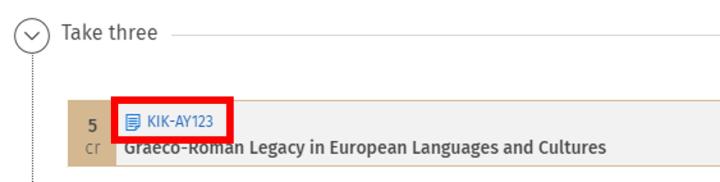
    Screenshot of the user interface of Sisu.
     
  3. Open the course brochure’s Equivalences and substitutions tab. 
  4. You can find the heading Substitution at the bottom of the tab, and below the heading is the Go to application button. Click the button and the substitution application opens up.

    Screen capture of the Equivalences and substitutions tab in Sisu.


  5. Click the button ‘Add information on studies or other prior learning’ in the middle part of the pop-up window.

    Screenshot of the user interface of Sisu.
     
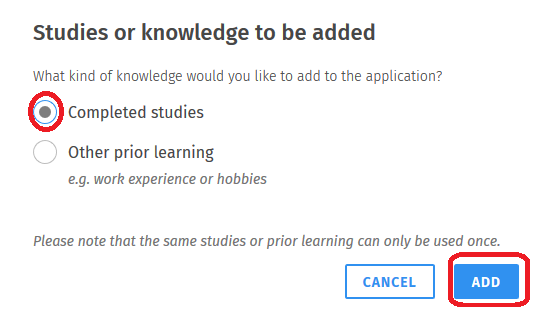
  6. Select the type of the studies you would like to add to the application in a new pop-up window.
    1. Select ‘Completed studies’ from the radio buttons if you have completed the credits in another higher education institution. 
    2. Select 'Other prior learning' if the learning has been acquired in non-formal or informal education.
  7. Click the Add button.
    Screenshot of the user interface of Sisu.


Add the substitution’s information

Fill in the information of the course you have completed elsewhere, such as the scope and name of the course in the original place of completion, in the text fields of the view that opens. Add the name of the substituting course also in Finnish and Swedish, if possible. Give the objectives, contents and possible literature of the completed course in the Description field.

If necessary, next you can add another substitution’s information by clicking the ‘Add information on studies or other prior learning’ button again, which is now shown below the information of the course you have completed elsewhere. Do this when, for example, you wish to substitute a 10-credit course with two 5-credit courses that have been completed elsewhere.

Add attachments

Add attachments by clicking the Choose files button in the bottom corner of the page or by dragging the files in the light grey field that says “Drop files to attach”. You will need a transcript of studies from the university where you have completed the studies as well as a description of the completed course as attachments for the substitution application. Please attach a description of the completed course as an attachment (e.g. screenshot) to the application if you have not added it to the Description field. If you are applying for substitution on the basis of non-formal or informal learning, you must attach to your application a description of how the learning corresponds to the learning outcomes of the studies whose recognition you are requesting.Your application cannot be processed without a transcript of studies and a description of the course. If necessary, also add the attachments required by your degree programme. Additional information on the required attachments is available on the page Recognition and validation of prior learning. Finally, click the Continue button in the bottom right corner of the application.
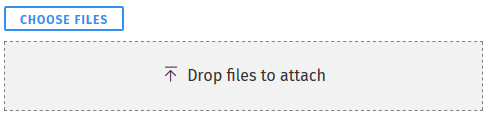
Screenshot of the user interface of Sisu.

Alternatively, you can add a link to the completed credits in the description field. You can find the link in the My Studyinfo service under My completed studies (information in Finnish and Swedish only). NB! Please first check that the linked information is correct. Please also note that the link is valid for only six months.

Choose how you want to be informed of the decision

Now, a heading Assessment and decision will appear at the bottom of the application. Select how you wish to be informed of the decision. We recommend that you choose the electronic decision if you do not necessarily need the decision on paper. Click the Submit application button in the bottom right corner of the application. After this, you can print out the application from the upper corner of the view. 
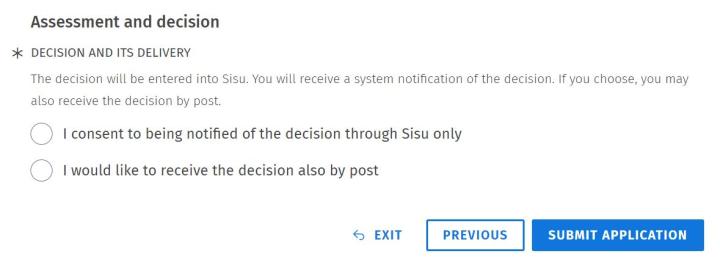
 

Screen capture of delivery options of an application decision in Sisu.

Notification of the decision

You will get a notification of the decision in Sisu’s frontpage and messages. The application can also be found from the My profile page. After your substitution application has been approved, the substituted course will be shown as completed in your study plan.

Graduation request in doctoral studies

Please note

  • You can submit a graduation request only in the primary study plan of your study right. 
  • Submit a graduation request while your study right is still valid! You can no longer submit a graduation request if your study right has ended, which means that you have to apply for an extension before you can graduate.  
  • Changes made in your primary study plan after submitting a graduation request no longer have an influence on your graduation request or the content of your degree certificate. 
  • If you have, for example, submitted a graduation request in the wrong degree programme or study track, your request will be rejected and you will be directed to edit your study plan to correspond with your study right. 

Compilation of study modules

If there are study modules, parts of study modules or courses that require separate approval in your study plan, they must be approved before submitting a graduation request. See the more detailed instructions on the page Sisu instructions: Applying for module content approval.

Read about compilation of modules in doctoral studies on the page Registration of doctoral studies. Most faculties require that modules are compiled before the preliminary examination of the doctoral thesis begins or, at the latest, before the doctoral researcher is granted the right to defend their thesis at a public examination.

Submit a graduation request

You can request graduation when you have completed all studies included in your degree. In this case, the status of your degree programme is “parts completed”. Submit a graduation request as follows: 

  1. Open the selection assistant by clicking the header line in your study plan with a picture of a garland and the text ‘Parts completed’.
    Screenshot of the user interface of Sisu.
     
  2. Click the ‘Request graduation’ link in the selection assistant.
    Screenshot of the user interface of Sisu.
     
  3. Confirm the request in the pop-up window by clicking the Request graduation button.
    Screenshot of the user interface of Sisu.

Complete a graduation request   

  1. First verify your personal details, such as your name and date of birth, at the top of the application. If any details are incorrect, please contact Student Services to rectify them.   
  2. Verify your contact details. If you are not continuing your studies at the University of Helsinki, add a secondary email address (not a helsinki.fi address). You can edit the details by clicking on the Edit button next to your contact details.   
  3. Please answer the open questions related to your graduation request. For those who have completed a doctorate, whose dissertation is in English and whose public examination has been in English, a degree certificate in English will be given upon request. This is the procedure also when the dissertation and the public examination are in another language.
  4. Under Other info, you can provide further information related to graduation, if necessary.
  5. Next, select one of the following options as the delivery method of your degree certificate: ‘I will pick up the degree certificate from the university’ or ‘I want the degree certificate sent to me by mail’. 
  6. Indicate whether you wish to join the University of Helsinki alumni community. 
  7. Click on Submit graduation request and confirm the submission in the pop-up window. 

Cancelling a graduation request

You can cancel a graduation request for 24 hours after the submission by opening it and by clicking the Withdraw request button. Please note that a cancelled graduation request cannot be restored and you have to submit a new request. You can find your submitted graduation request as follows: 

  1. Open the Applications and requests tab on My profile page in Sisu.
  2. Open the graduation request by clicking it.

    Picture of Sisu interface

  3. Click the Withdraw request button. Confirm the withdrawal in the pop-up window by clicking Yes.

    Picture of Sisu interface